
Brew curves in BOOKOO N help you track and refine your extraction with real-time feedback. Follow these steps for the best results.
1. Select Your Brew Mode
Before starting, on the Brew screen, choose the brew mode that matches your method:
Espresso Mode – Focus on flow, pressure and puck resistance .
Pour-Over Mode – Track weight, brew ratio, timing and flow rate.
The app will automatically adjust metrics and interface to match the selected mode.
2. Choose a Reference Curve (Optional)
Pick a reference curve to guide your extraction. This can help you replicate successful brews or experiment with new profiles.
Classic Curves – Proven, beginner-friendly profiles.
History Curves – Reuse curves from your past brews.
Favorite Curves – Quickly access the profiles you’re most proud of.
Visualizer Curves – Import community-shared curves for inspiration.
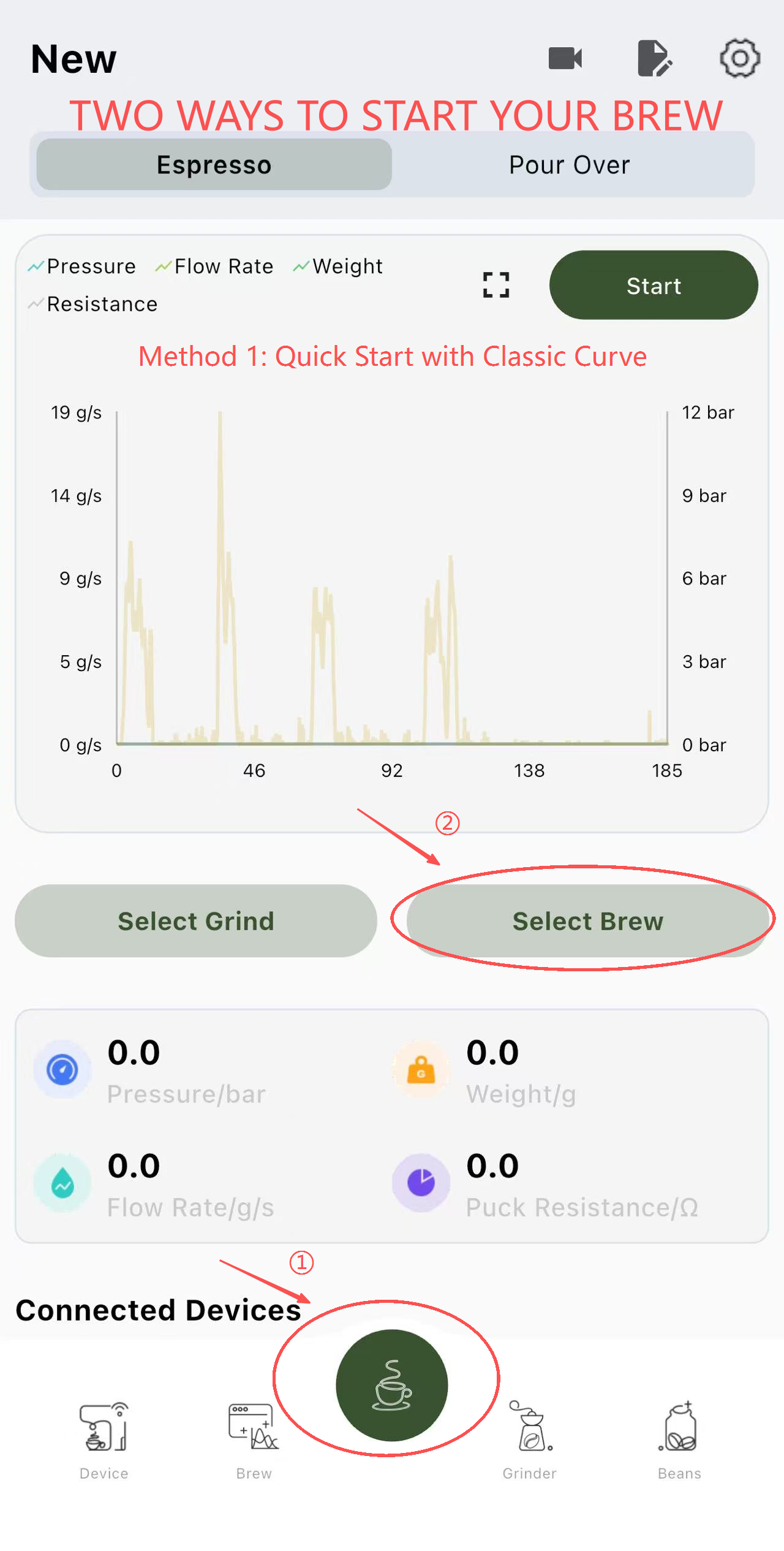
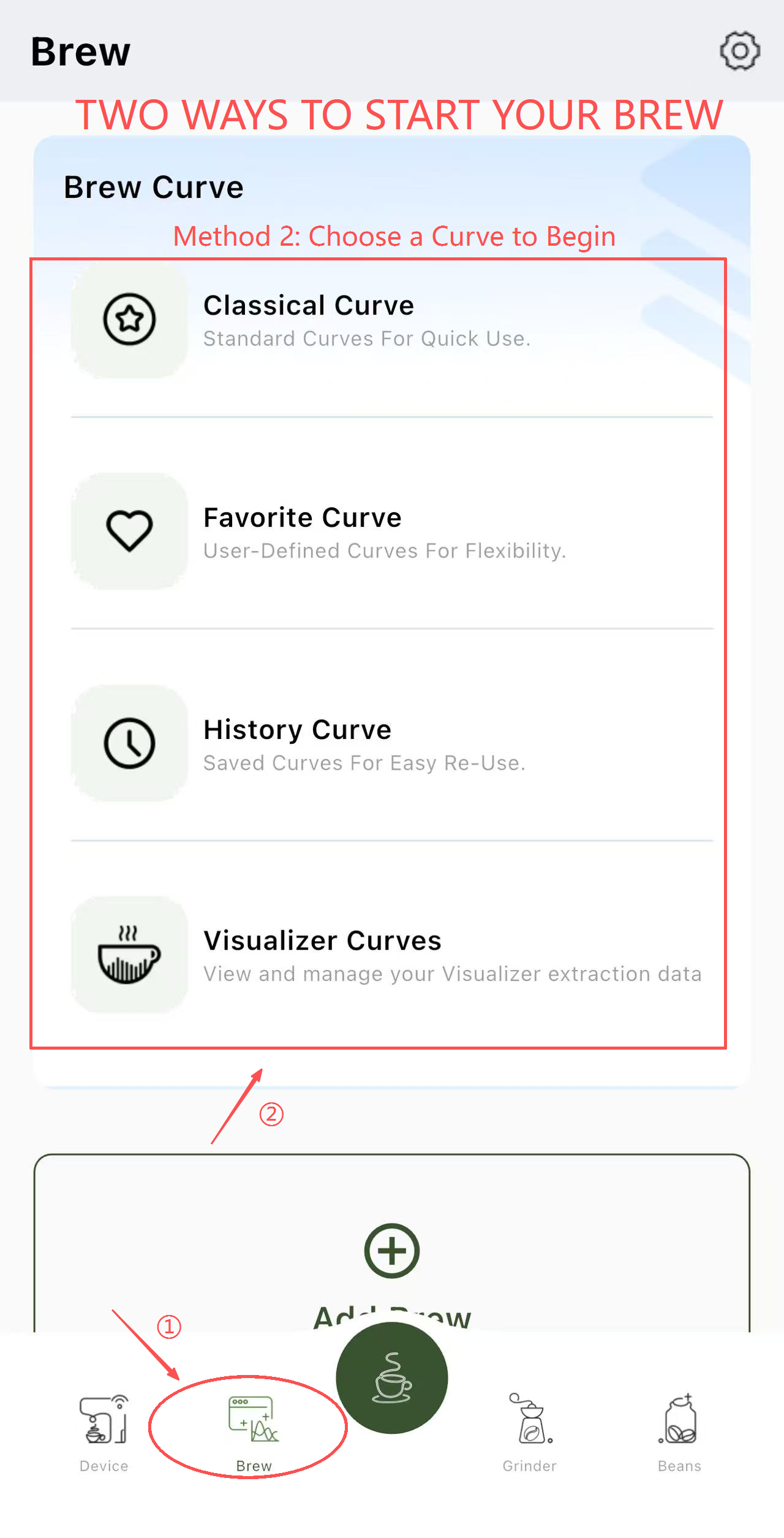
The reference curve will appear in the background during brewing for real-time guidance.
3. Start Your Extraction in Landscape Mode
Before starting your extraction, rotate your phone to landscape orientation and tap the full screen icon.
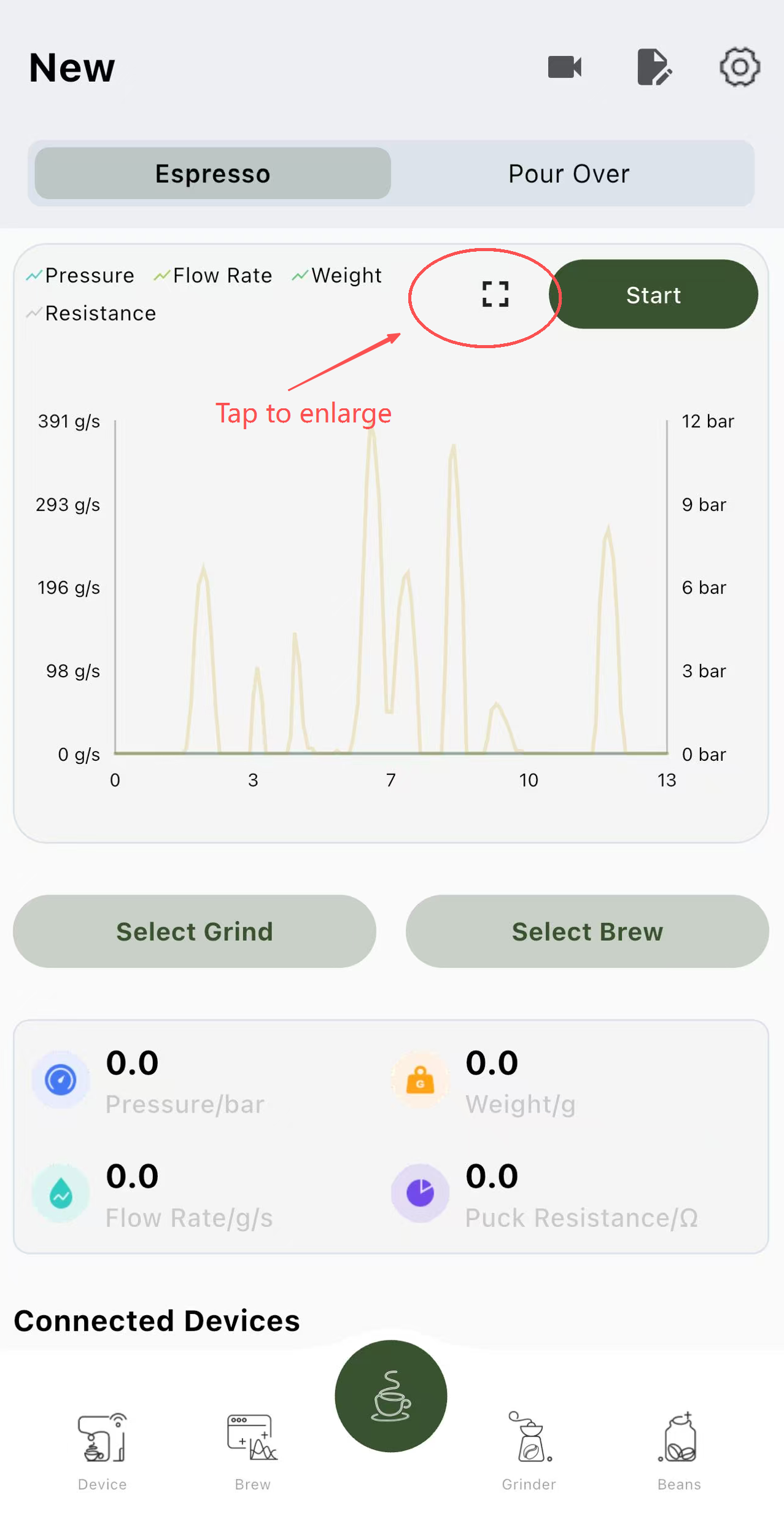
This gives you a wider, clearer view—perfect for placing beside your machine or on a stand while tracking your curve. Tap Start to begin tracking your brew in real-time.
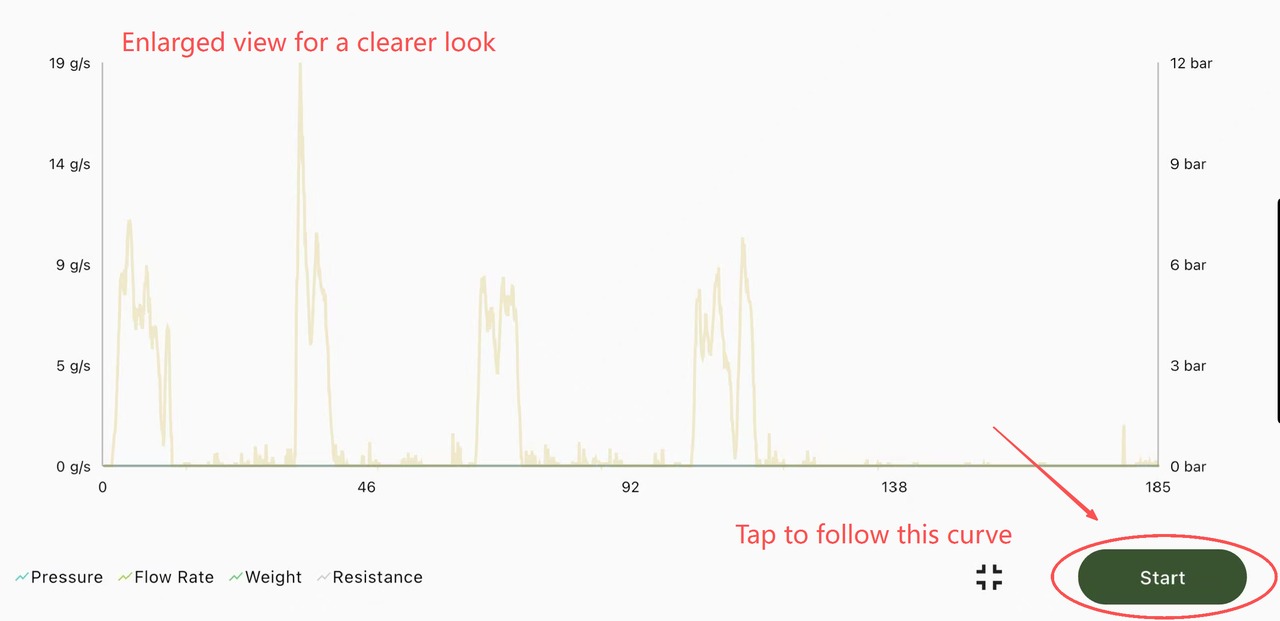
Metrics such as pressure, flow, ratio, and time (depending on brew mode) will be recorded automatically.
4. Enable Mirror Brew Mode (Optional)
If desired, activate Mirror Brew Mode to record your extraction with the front or rear camera while tracking your curve.
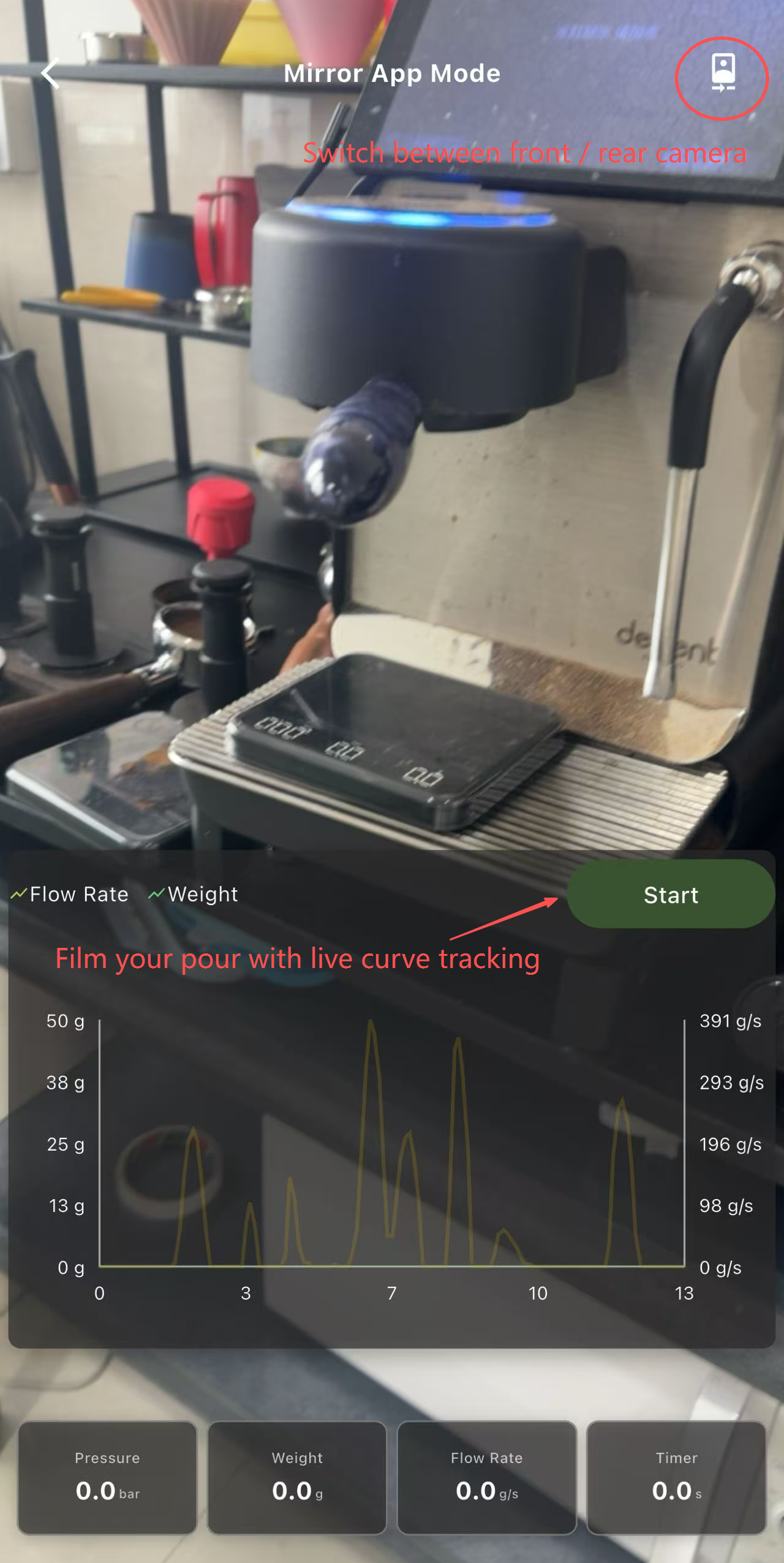
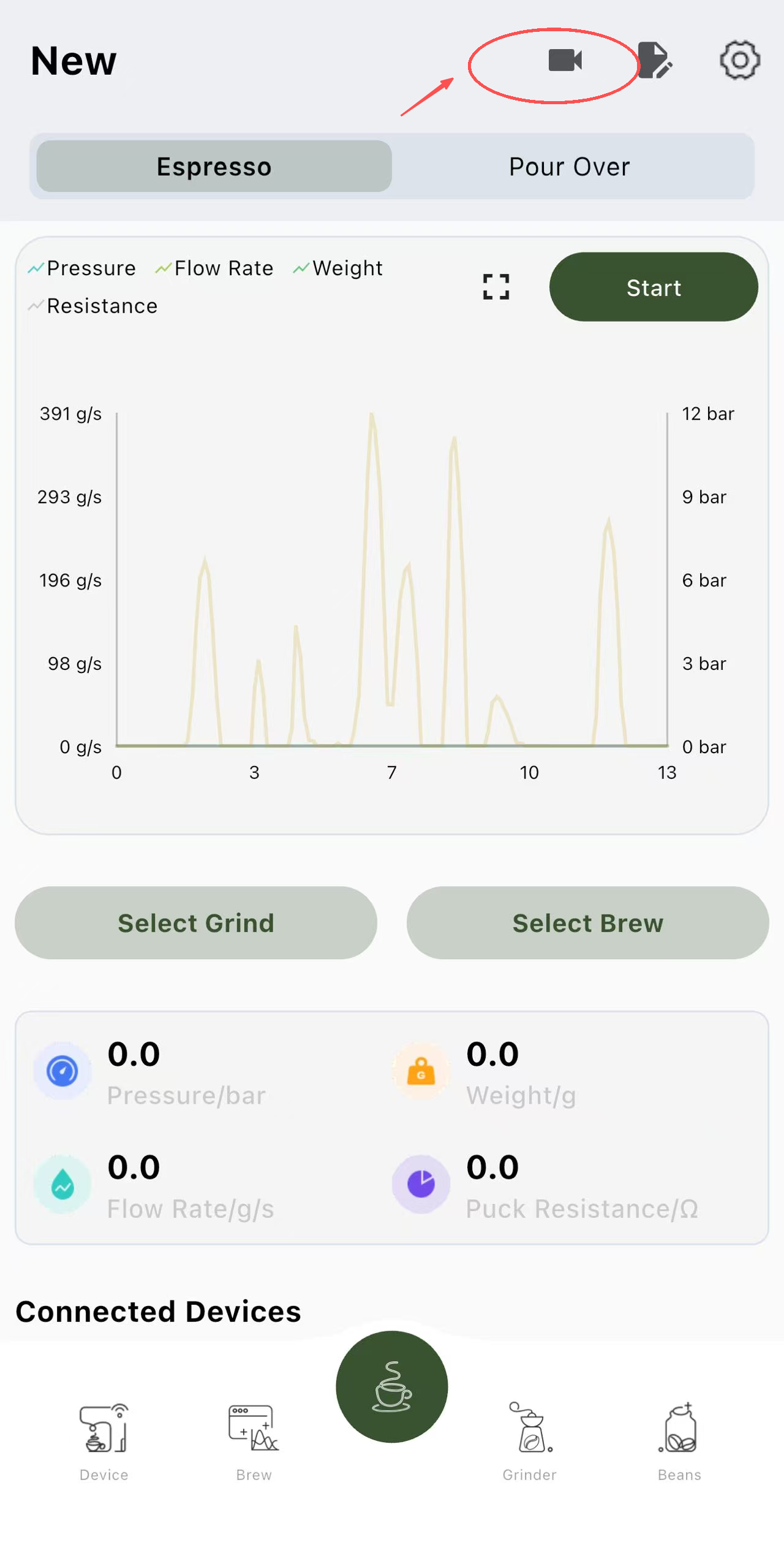
Ideal for creating shareable videos with visual data overlays.
5. Monitor Your Brew
Watch your live extraction curve and key metrics as your brew progresses. Adjust your technique as needed based on real-time feedback.
6. Finish and Edit Brew Information
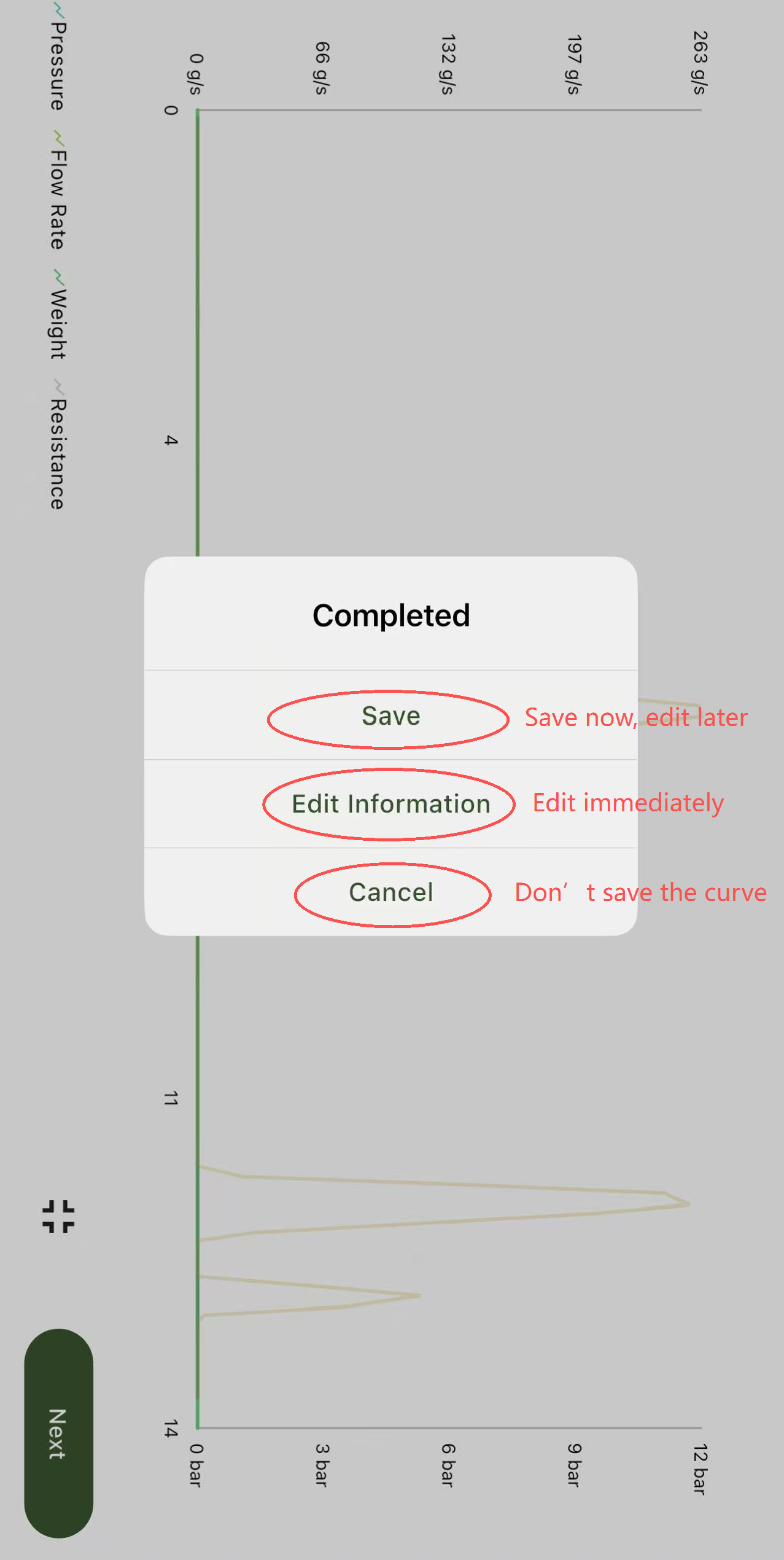
After your extraction ends (manually or automatically), an edit popup will appear.
You can:
Edit Information – Modify notes, metadata, or annotate the brew curve immediately.
Save – Store the extraction and edit it later in Brew History.
Cancel – Discard this extraction record.
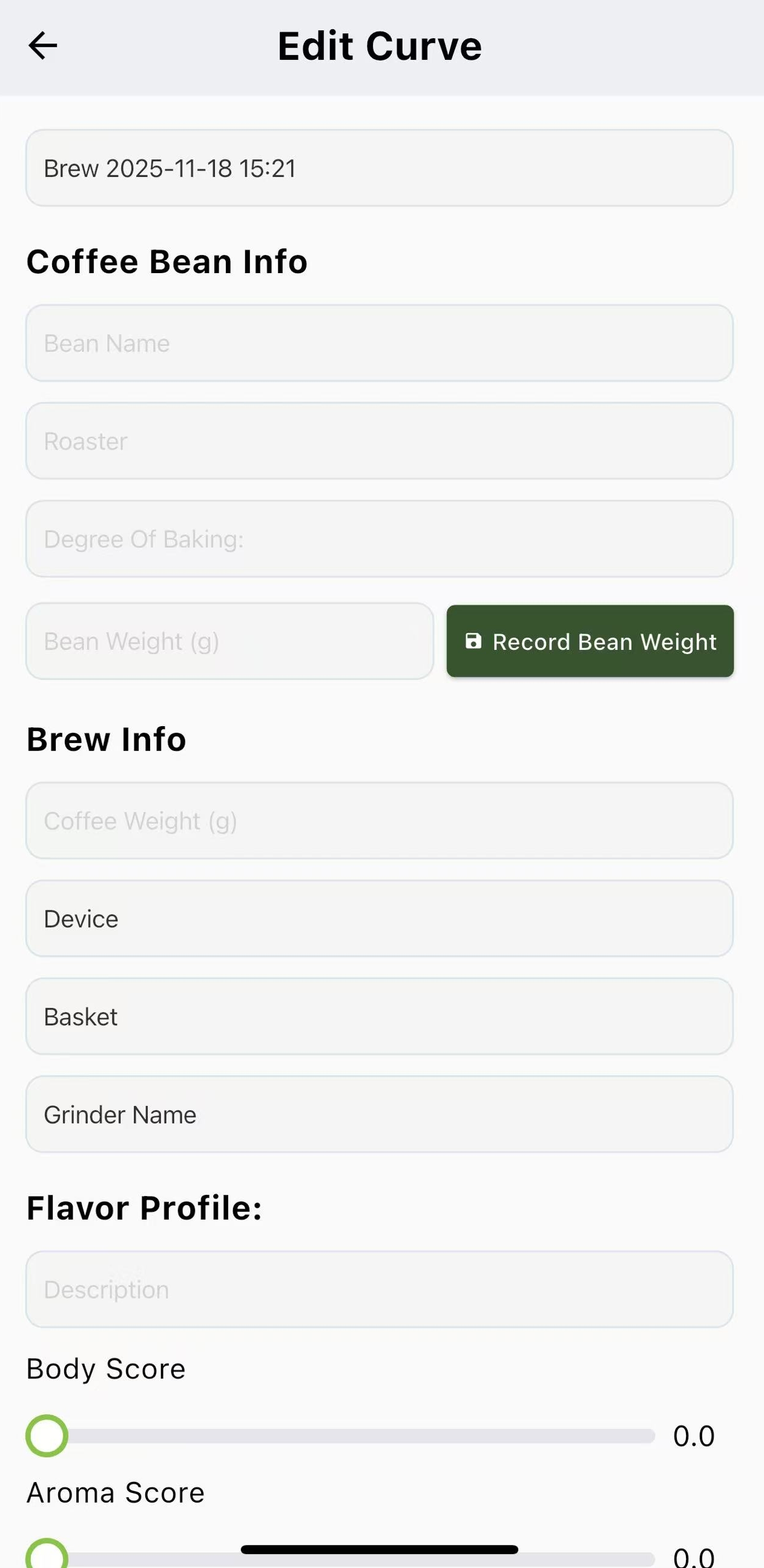
Once saved, all details—including coffee bean info, grinder info, flavor profile, and notes—are recorded automatically.
BOOKOO N becomes your smart assistant, helping you track every brew effortlessly and refine your recipes over time.
Tips for Effective Tracking
Rotate your phone to landscape mode for a wider, clearer view.
Mirror Brew Mode requires your phone to be on Always-On. Use your phone’s screen recording to capture videos—this mode cannot record by itself.
Track every brew to gradually develop your signature profile.
You might also find this article helpful: Manage Curves in BOOKOO N