
The BOOKOO N app lets you take full control of your brew curves, helping you refine your coffee extraction and maintain consistency. Here’s how to manage, edit, and reuse your curves efficiently.
1. Editing & Using Historical Curves
Edit Existing Curves:
Select a curve from History Curve.
Tap pencil icon to modify detailed extraction info.
Save changes to update the curve across the app.
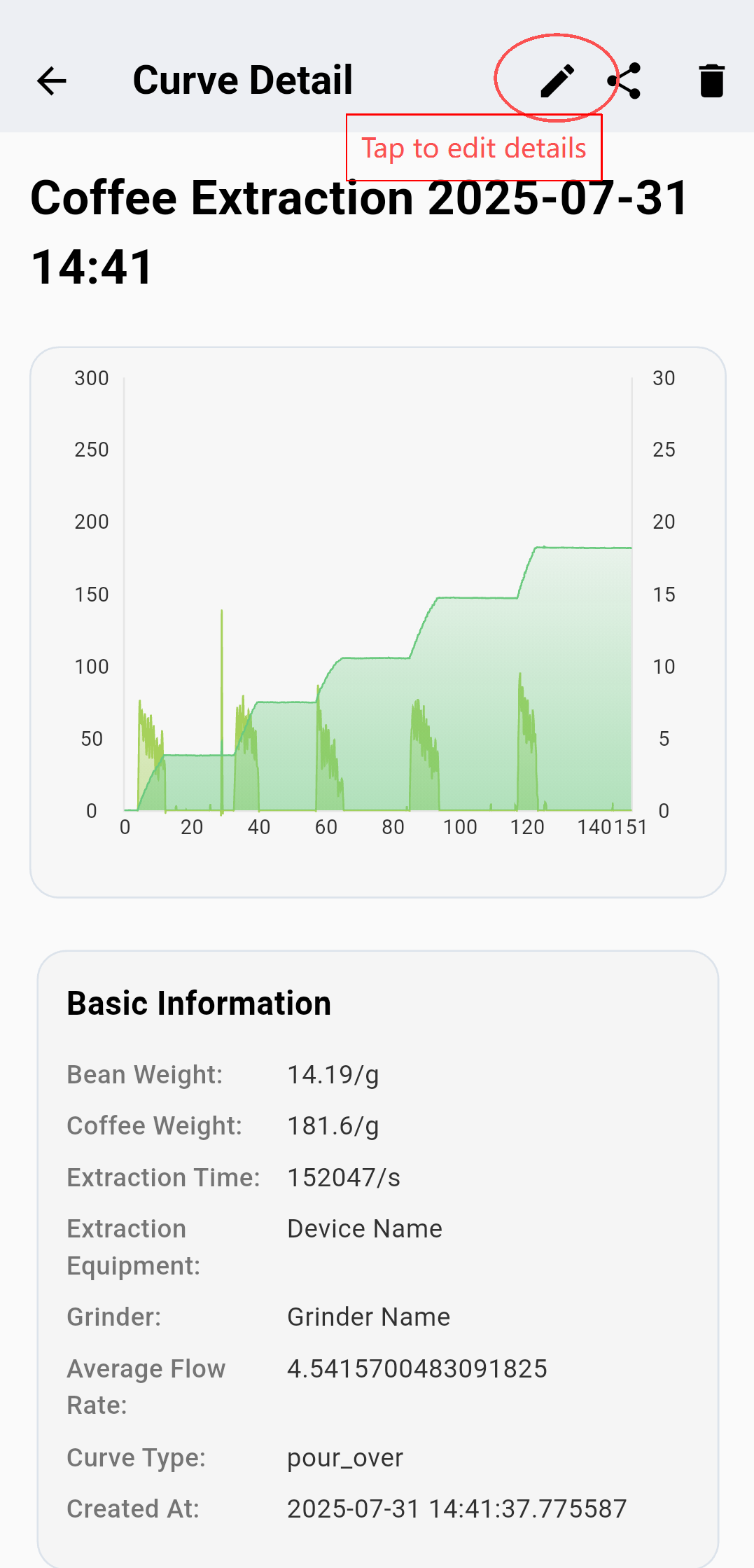
Pro Tip: Well-named curves make it easier to search and manage your signature brews over time.
Use Existing Curves:
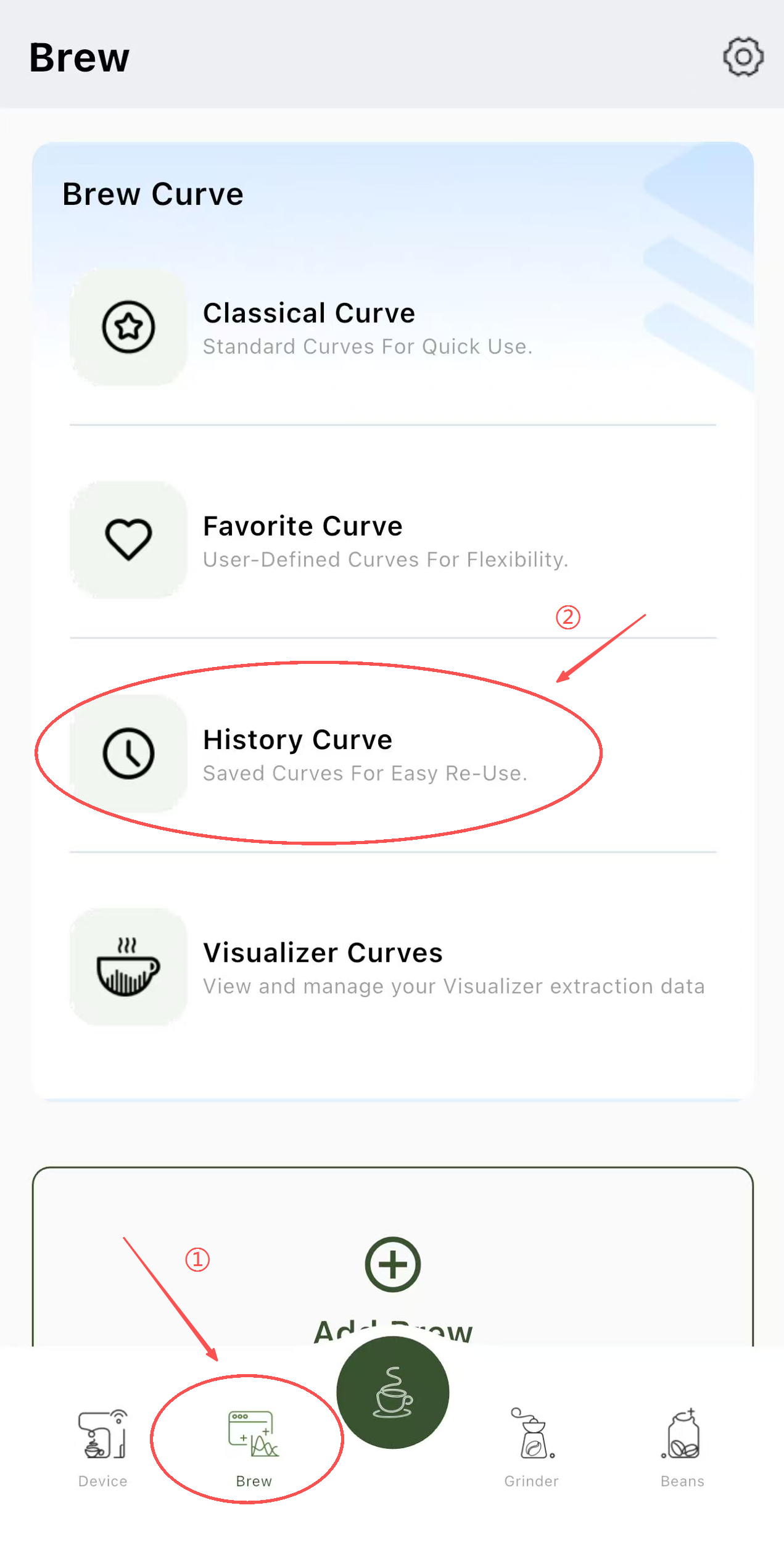
Steps:
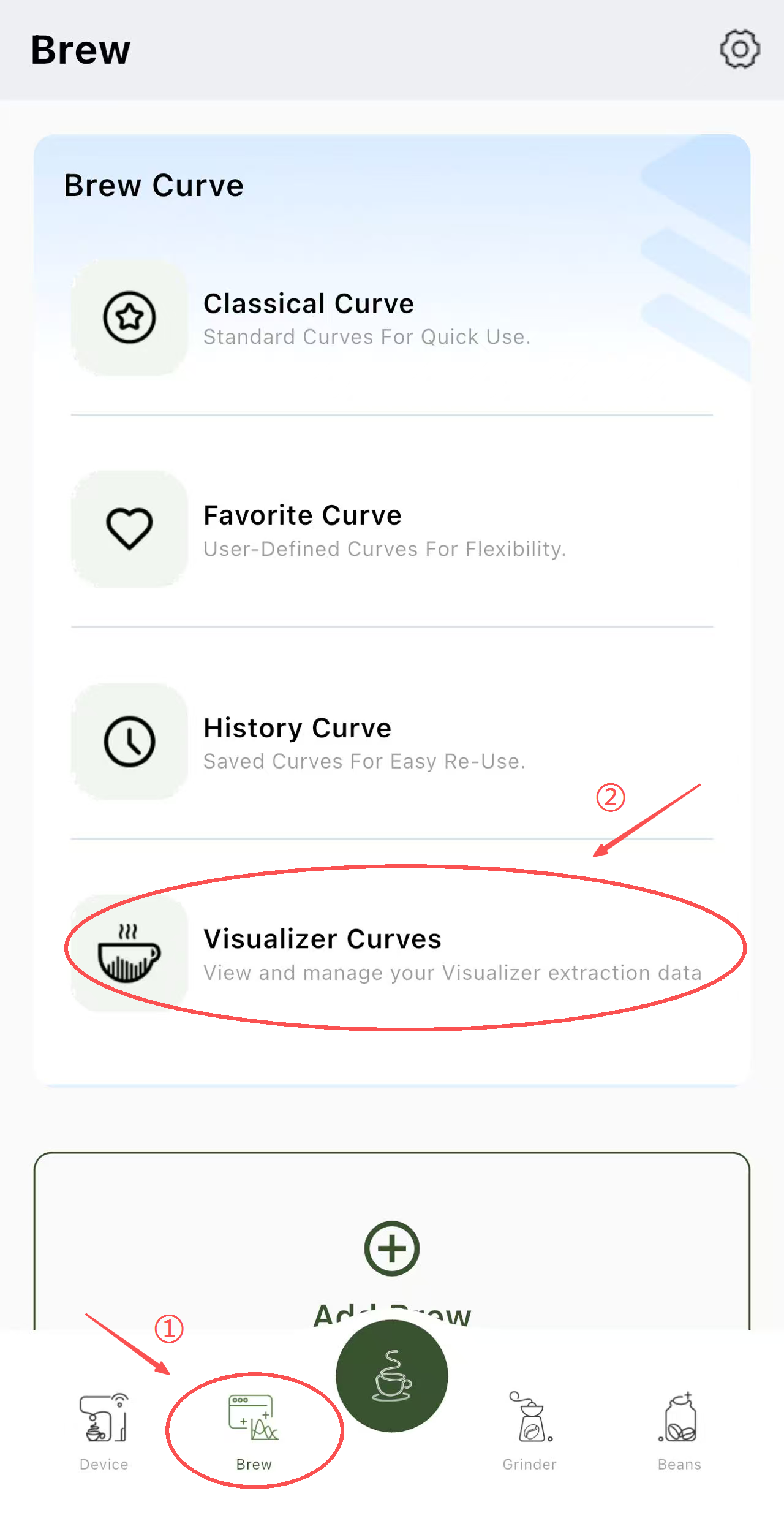
Brew → Brew Curve → History Curve
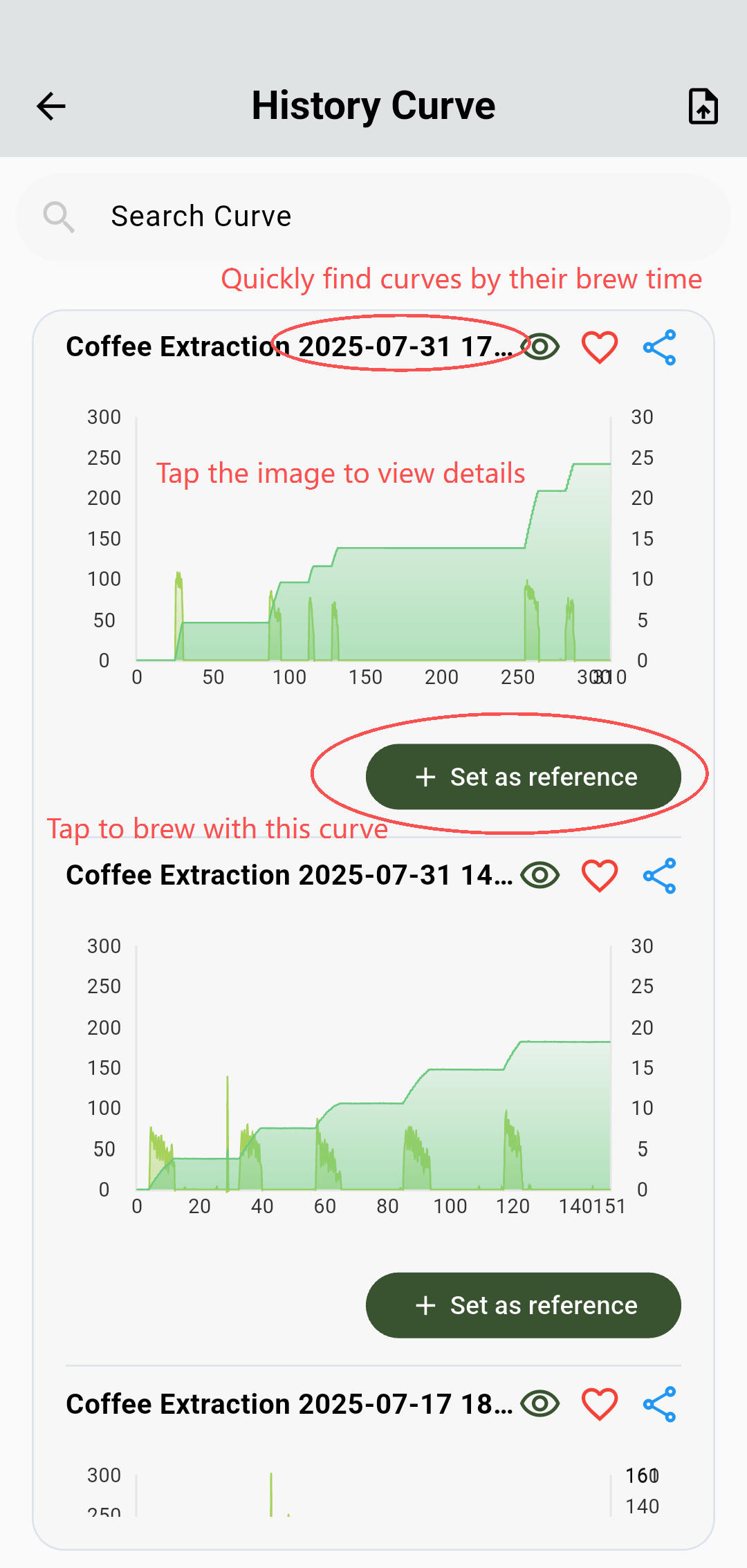
Search & Select the brew you want to replicate.
Tap Set as Reference to apply it in your extraction.
2. Saving Favorite Curves
Quick access to your best-performing curves speeds up brewing and ensures consistency.
Steps:
Brew → Brew Curve → History Curve
Tap the heart icon on the curve you want to save.
Access all favorites from the Favorite Curves section during future brews.
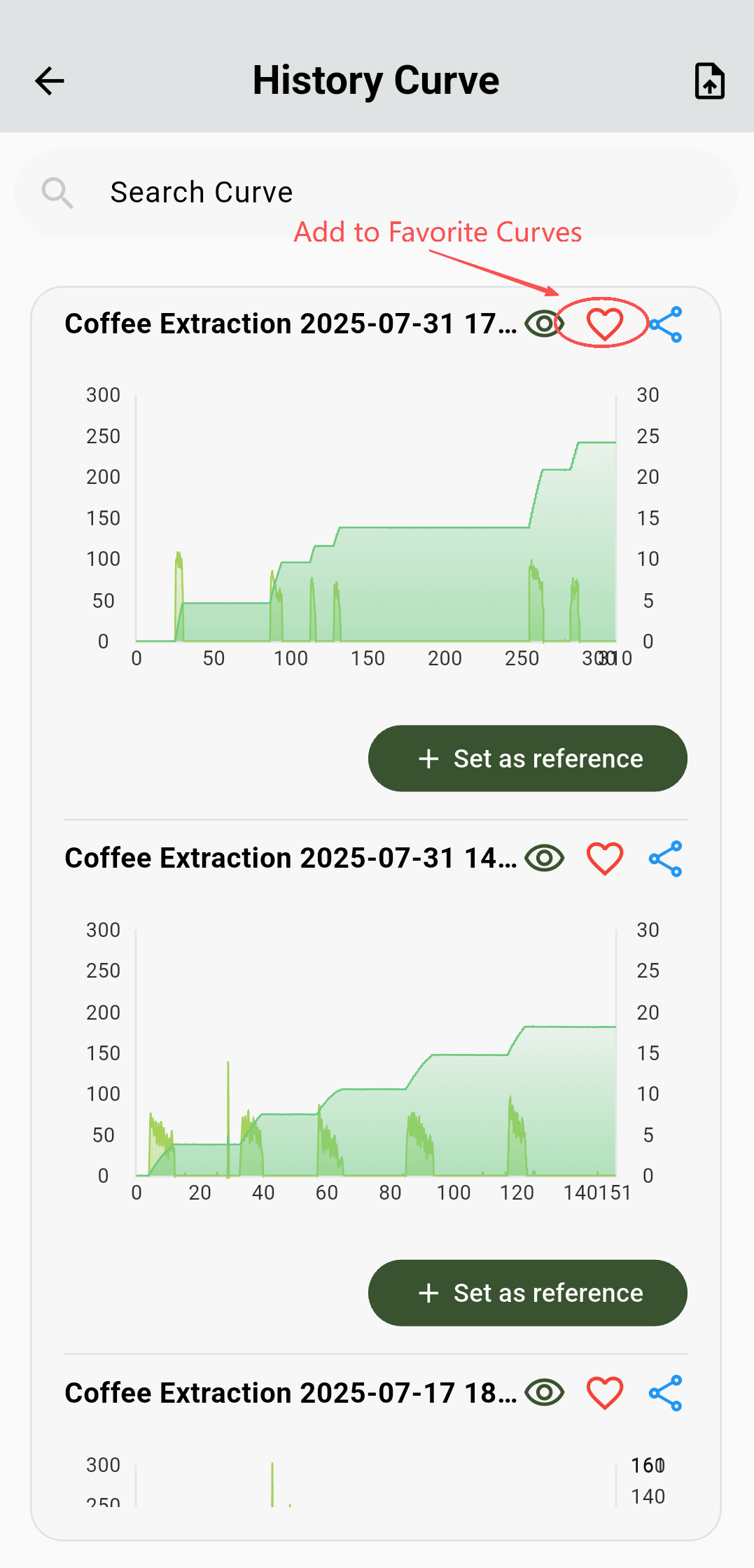
Why it matters: Favorite curves let you quickly apply proven profiles without searching through your entire history, making every brew reliable.
3. Importing and Exporting Visualizer Curves
BOOKOO N supports community-shared curves via the Visualizer feature.
Steps to Import:
Brew → Brew Curve → Visualizer Curve
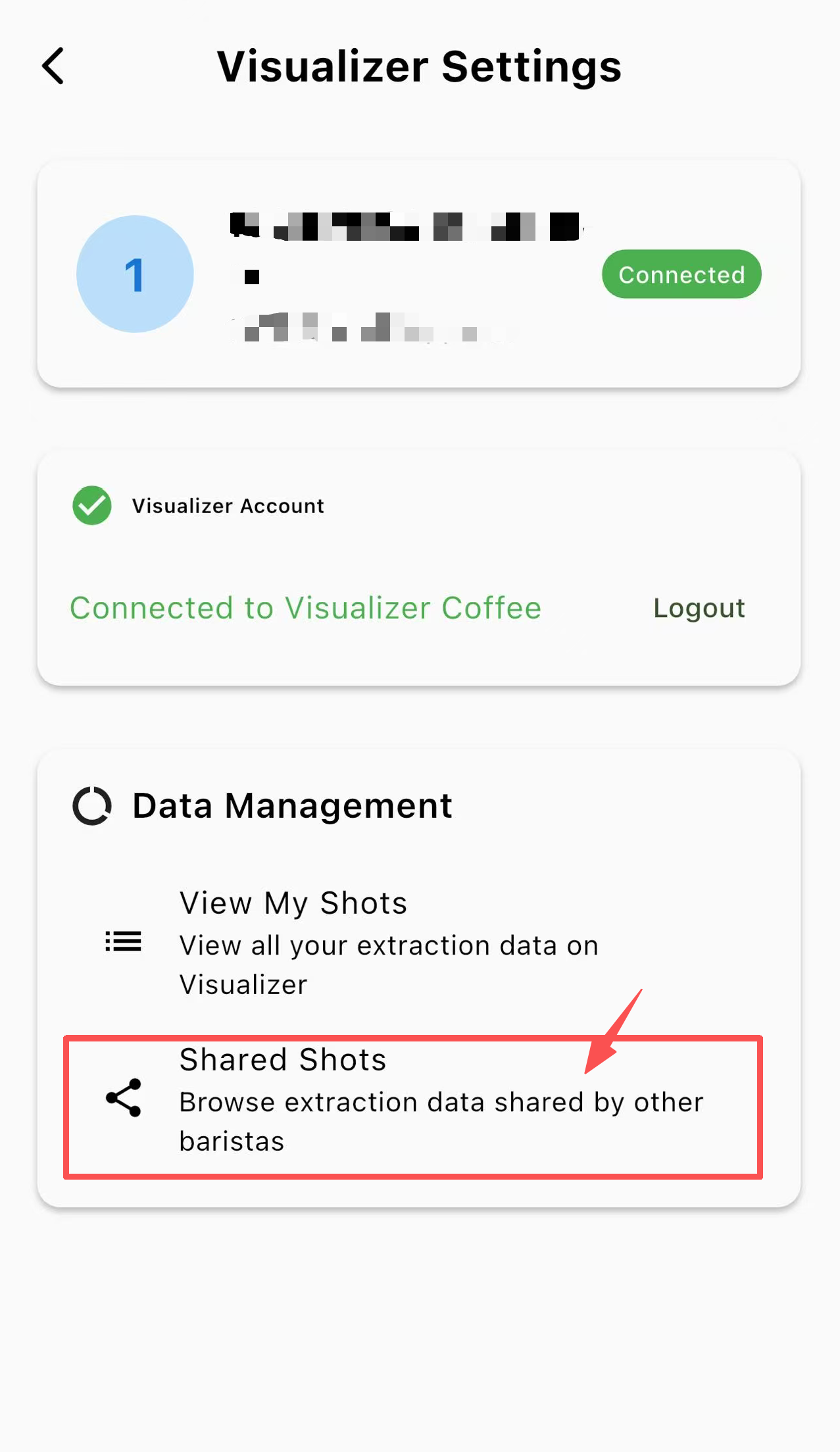
Log in/ sign up to your Visualizer account
Click Shared Shots in Data Management
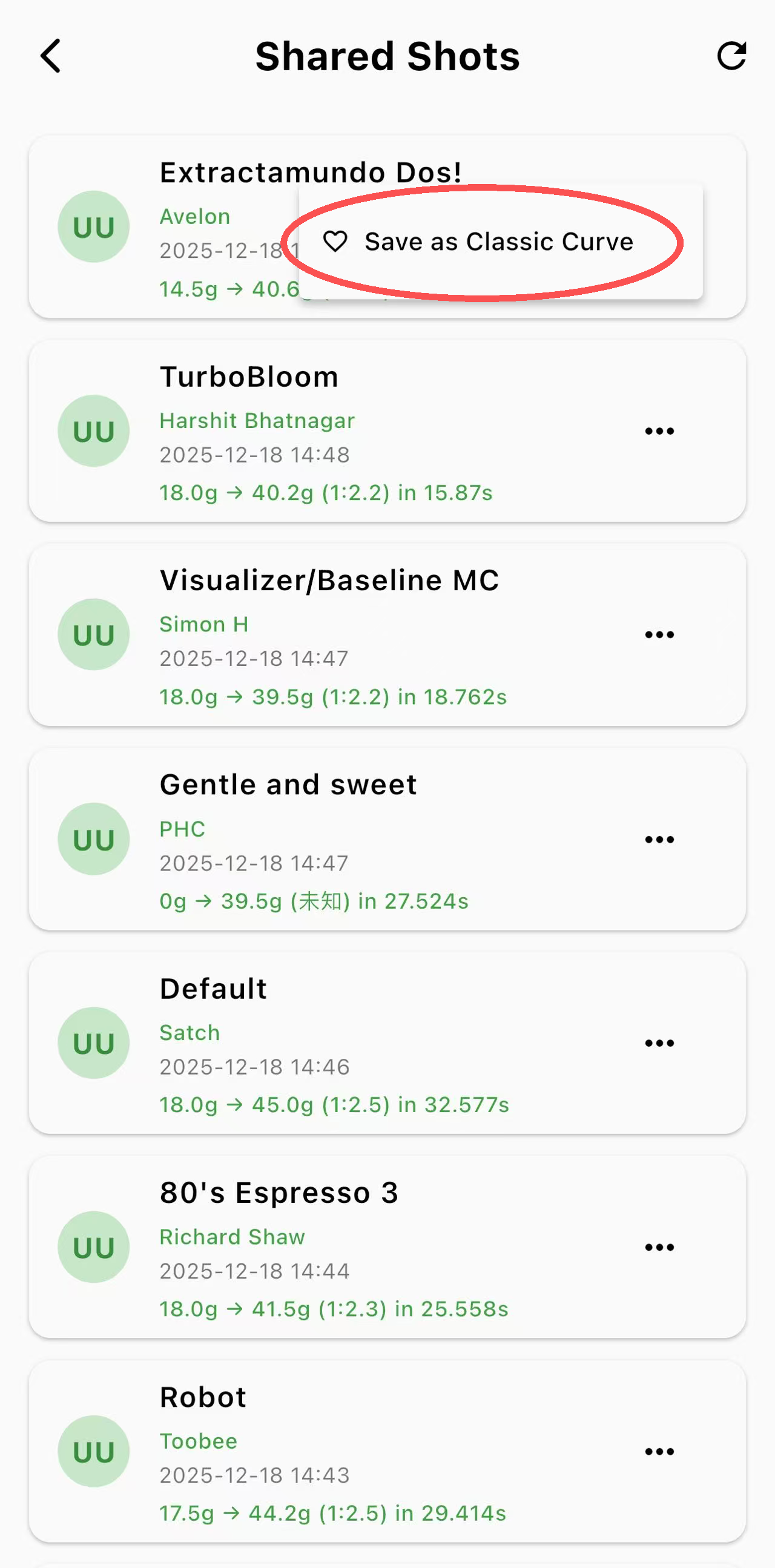
Browse community curves and tap Save as Classic Curve – the curve will appear in your library for immediate use
Steps to Export:
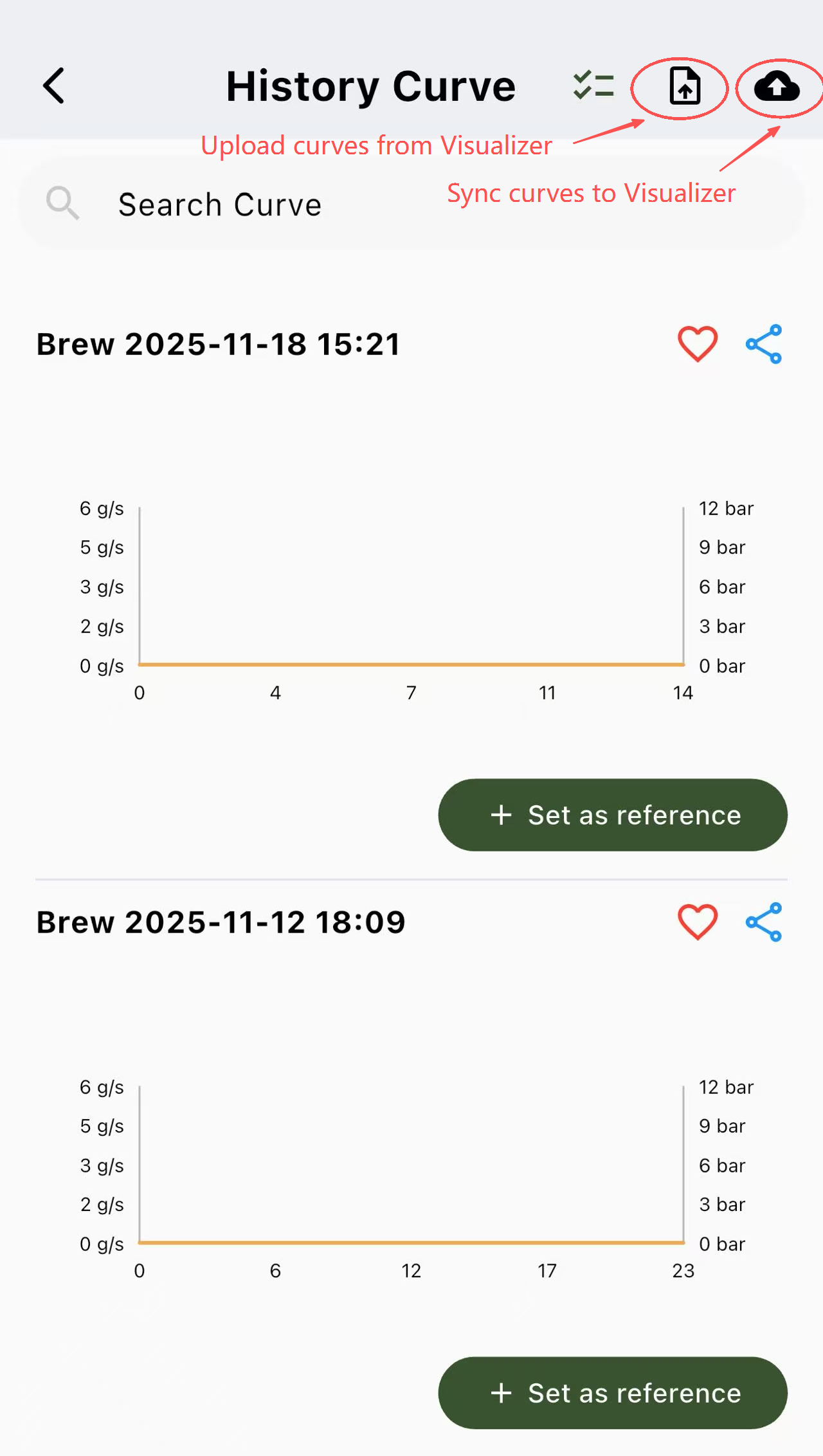
In your curve library, click cloud icon for curve syncing
Select your satisfying curve to upload and share
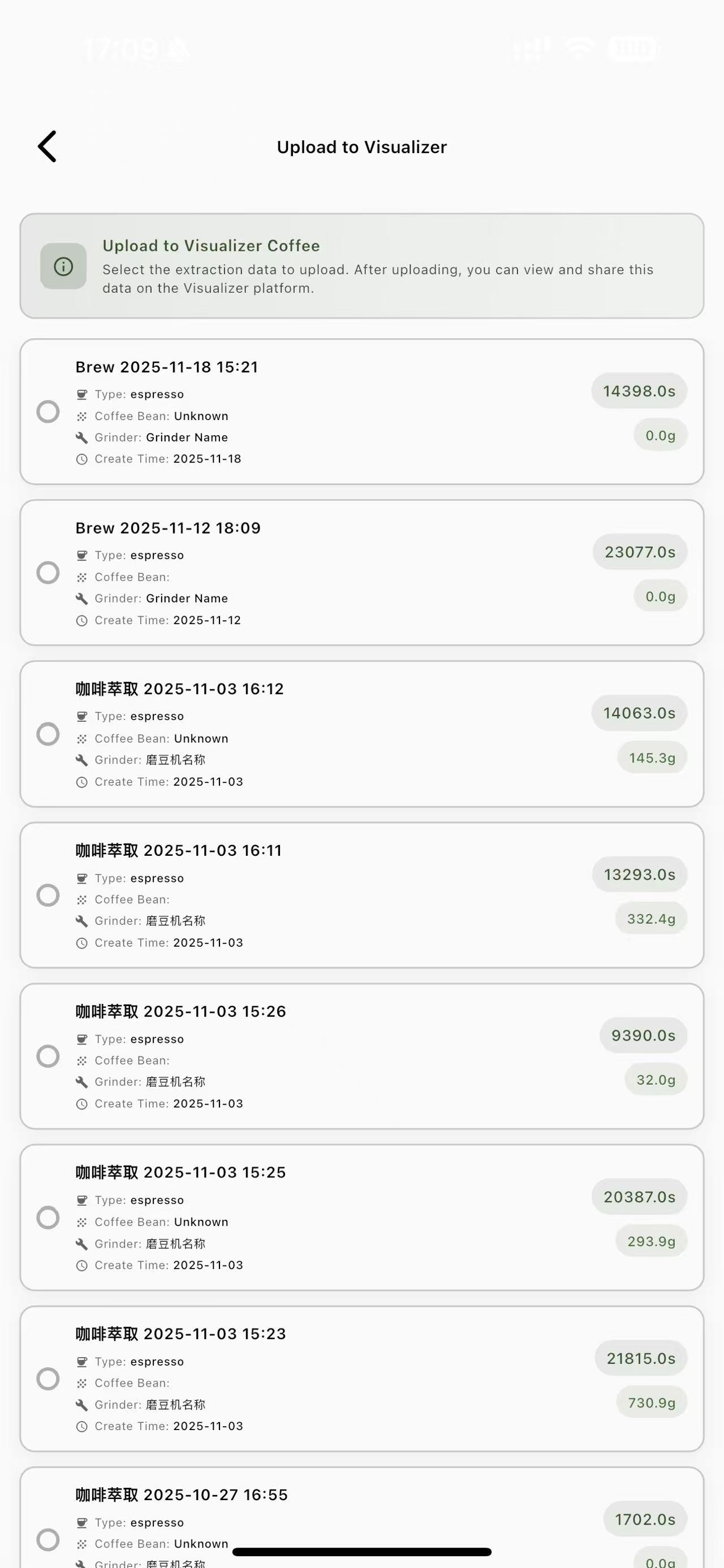
Why it’s useful: Expand your brewing repertoire by exploring expert-curated profiles or sharing your own.