
1. Download the BOOKOO N App
iOS Users: Open the App Store, search for “BOOKOO”, and download BOOKOO N.
Android Users: Search “BOOKOO” on Google Play and download BOOKOO N, or download the APK from our official website: BOOKOO N Android APK.
For more details, please refer to the article:
2. Enable Bluetooth & Permissions
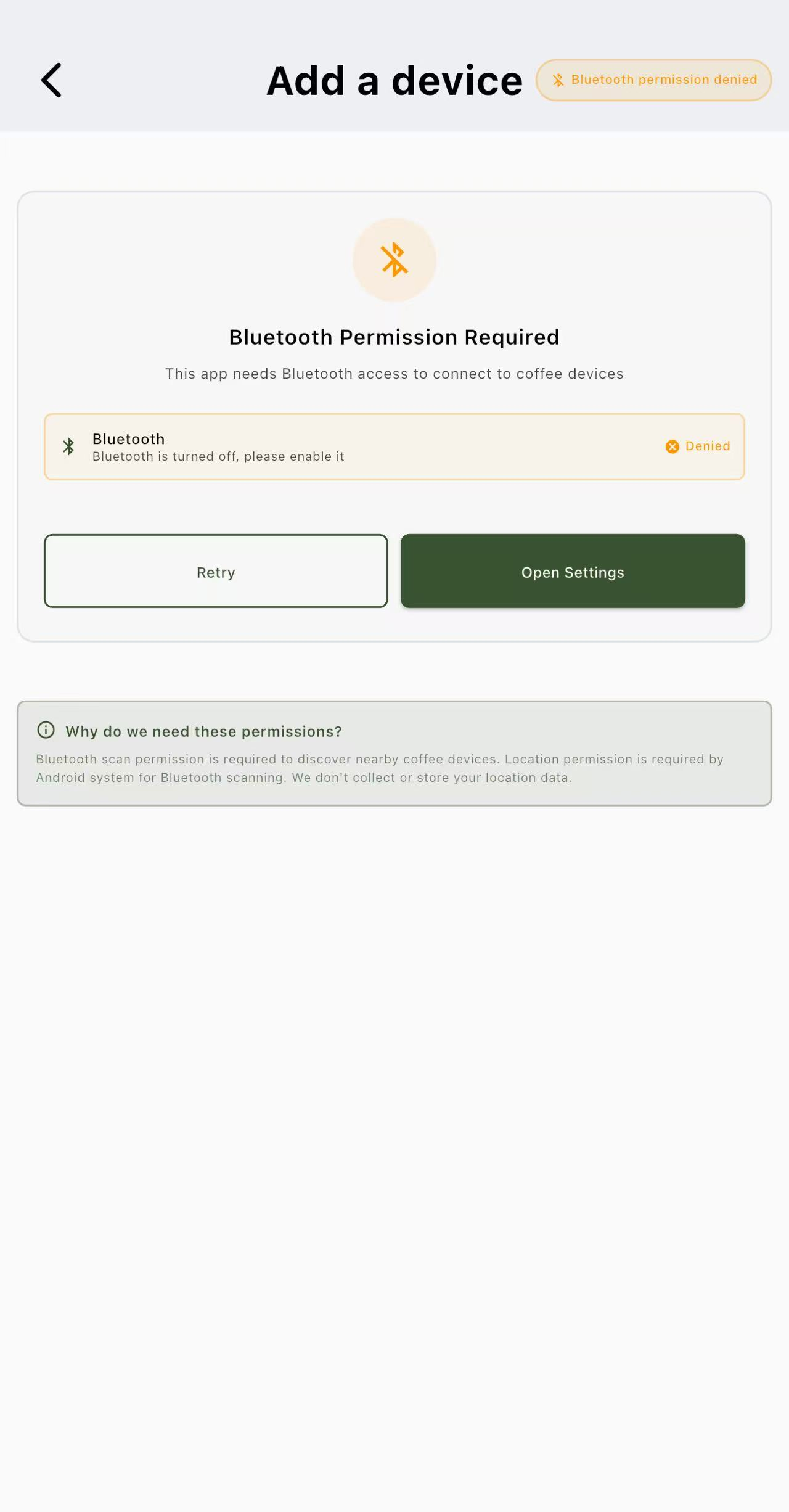
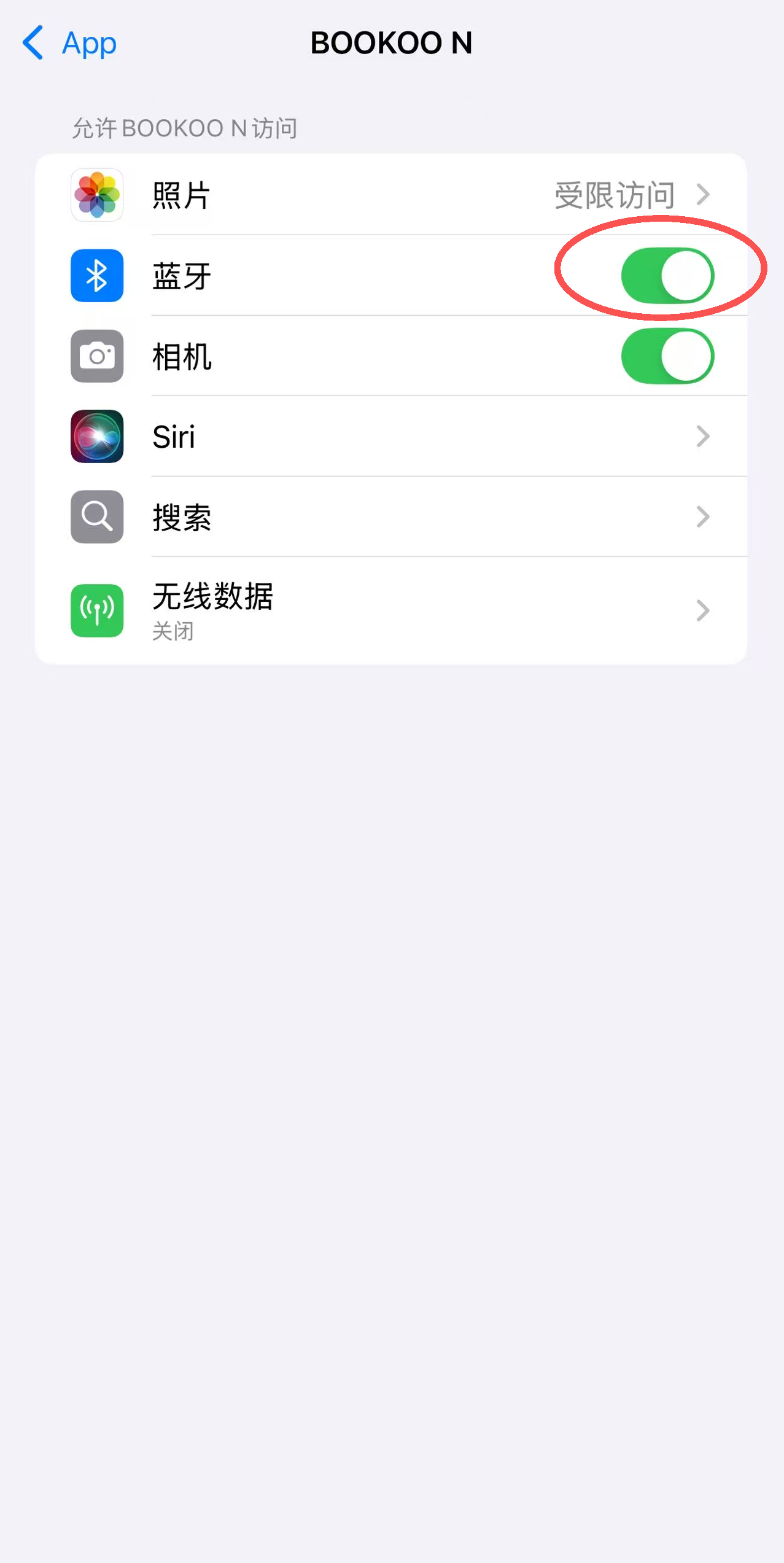
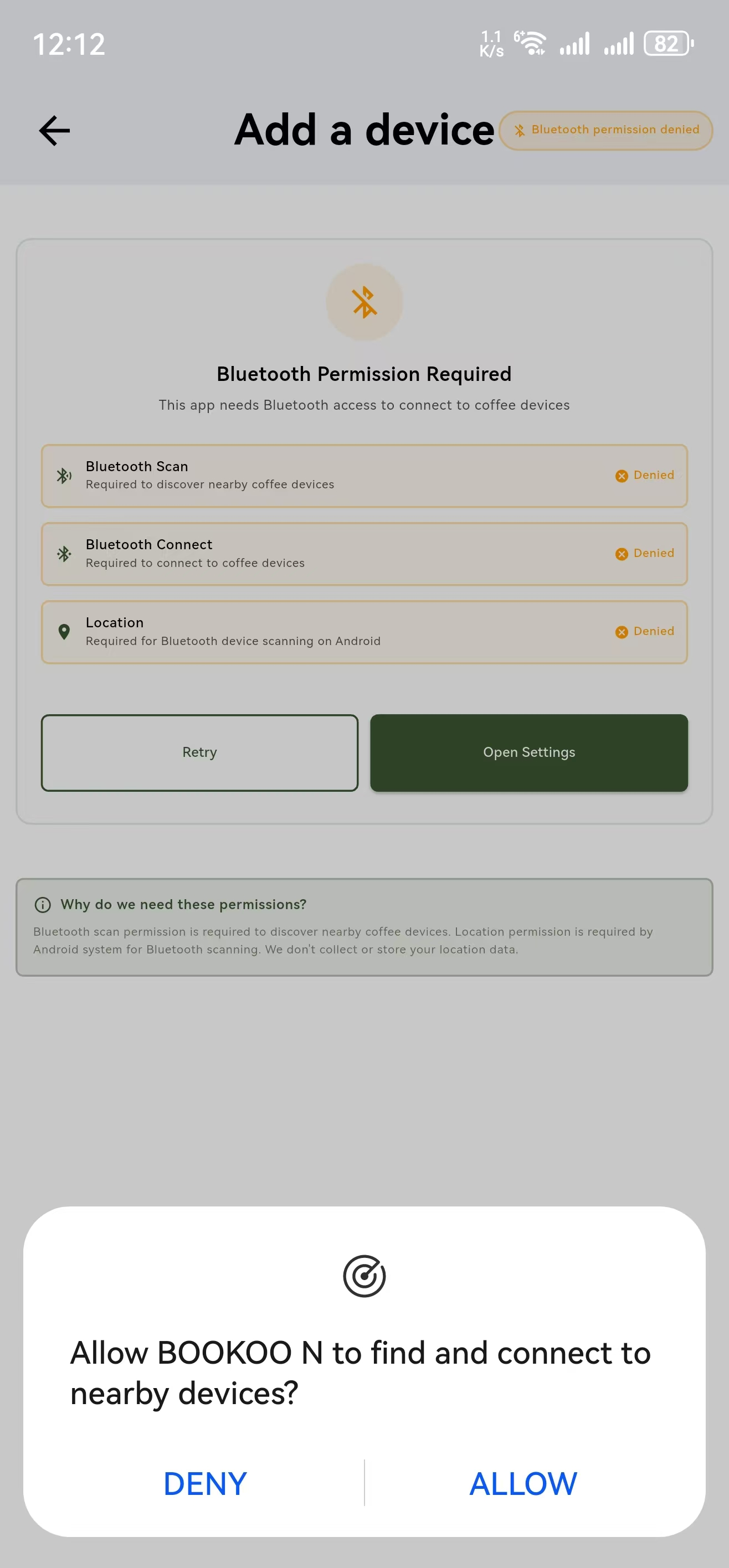
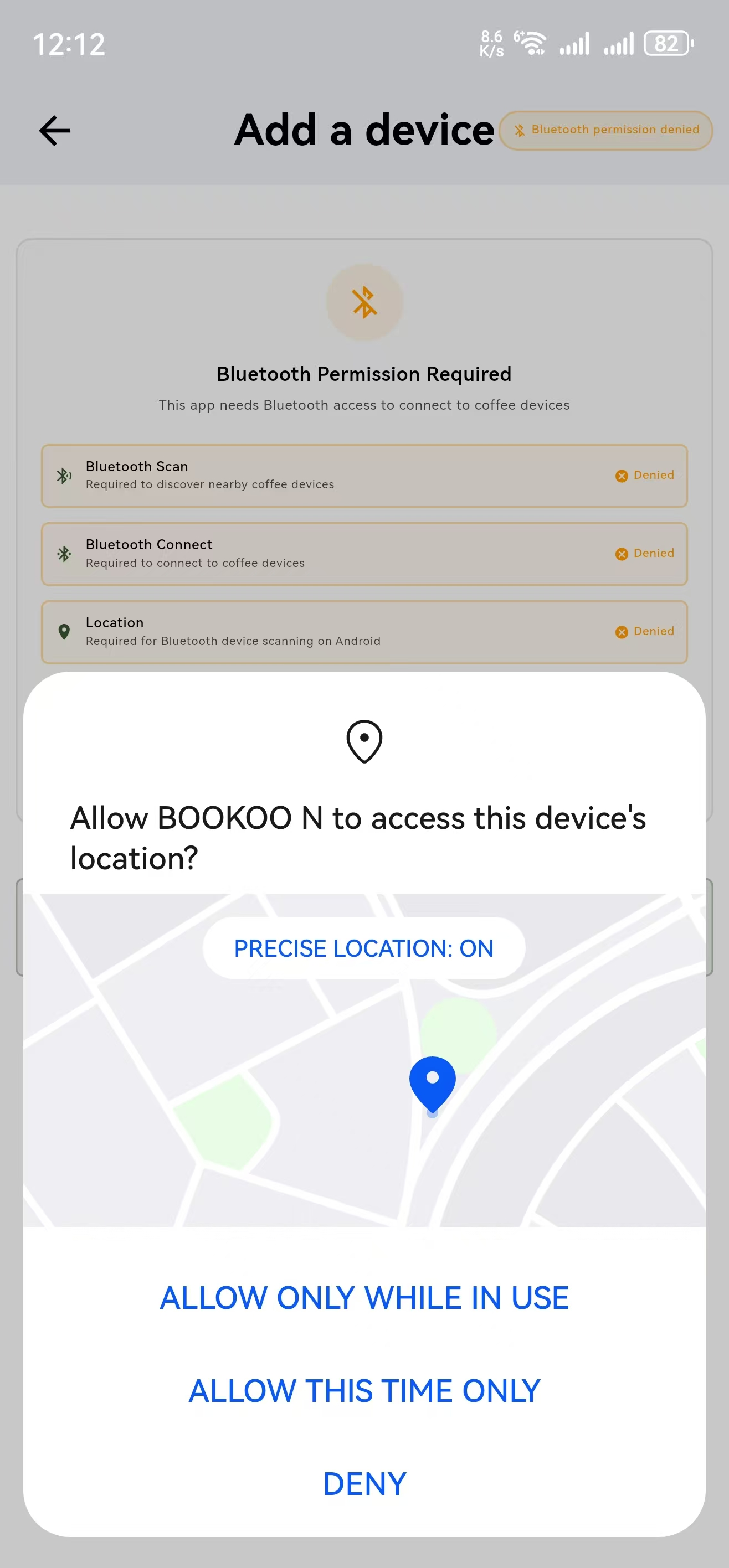
On your device, enable Bluetooth in your System Settings and allow BOOKOO N to access the Bluetooth.
Android users: Also grant device and location permissions.
 |  |
|---|---|
 |  |
3. Pair the EM Device
Manual Connection (Default):
Open the BOOKOO N app.
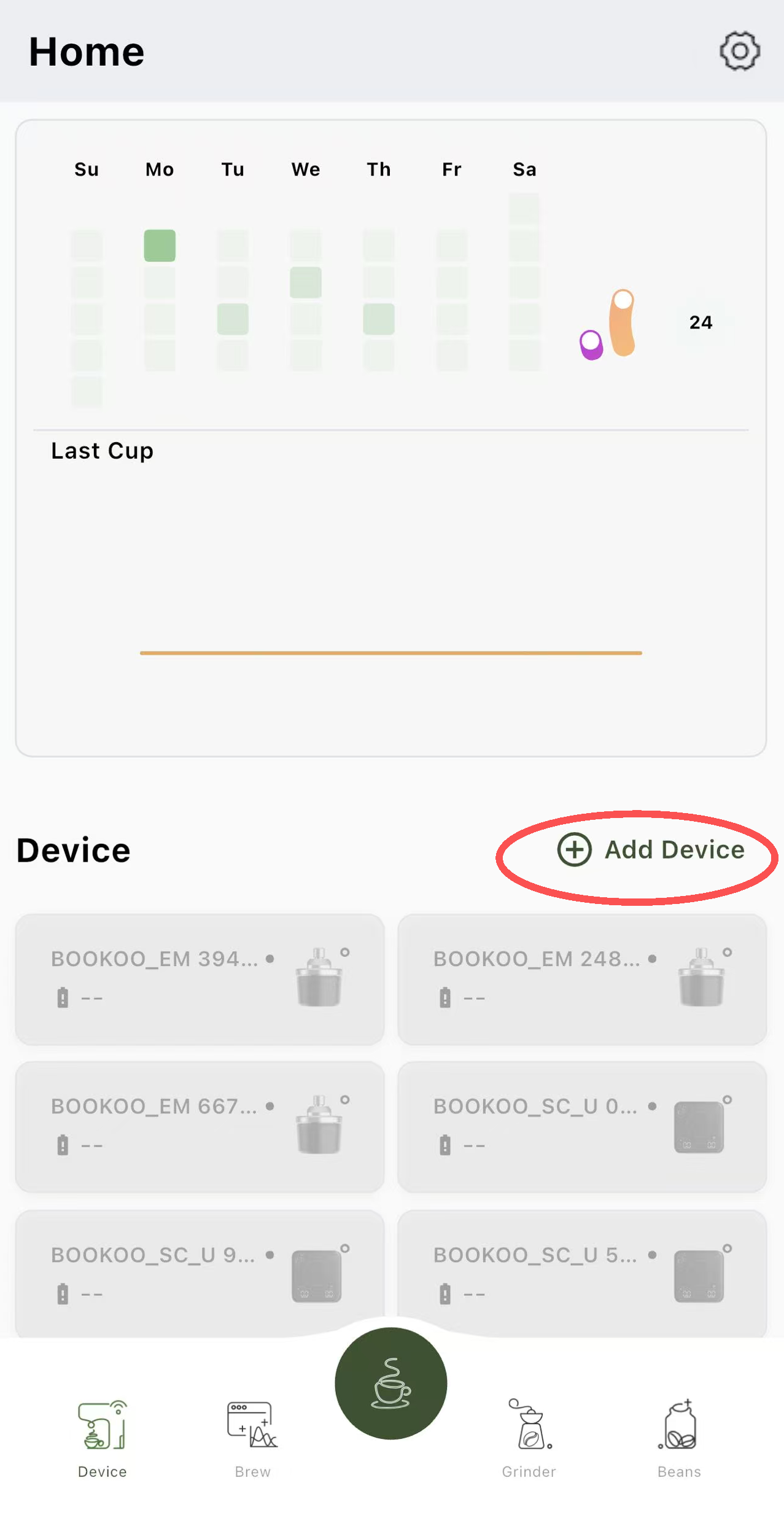
Tap [Add Device] on the home screen.
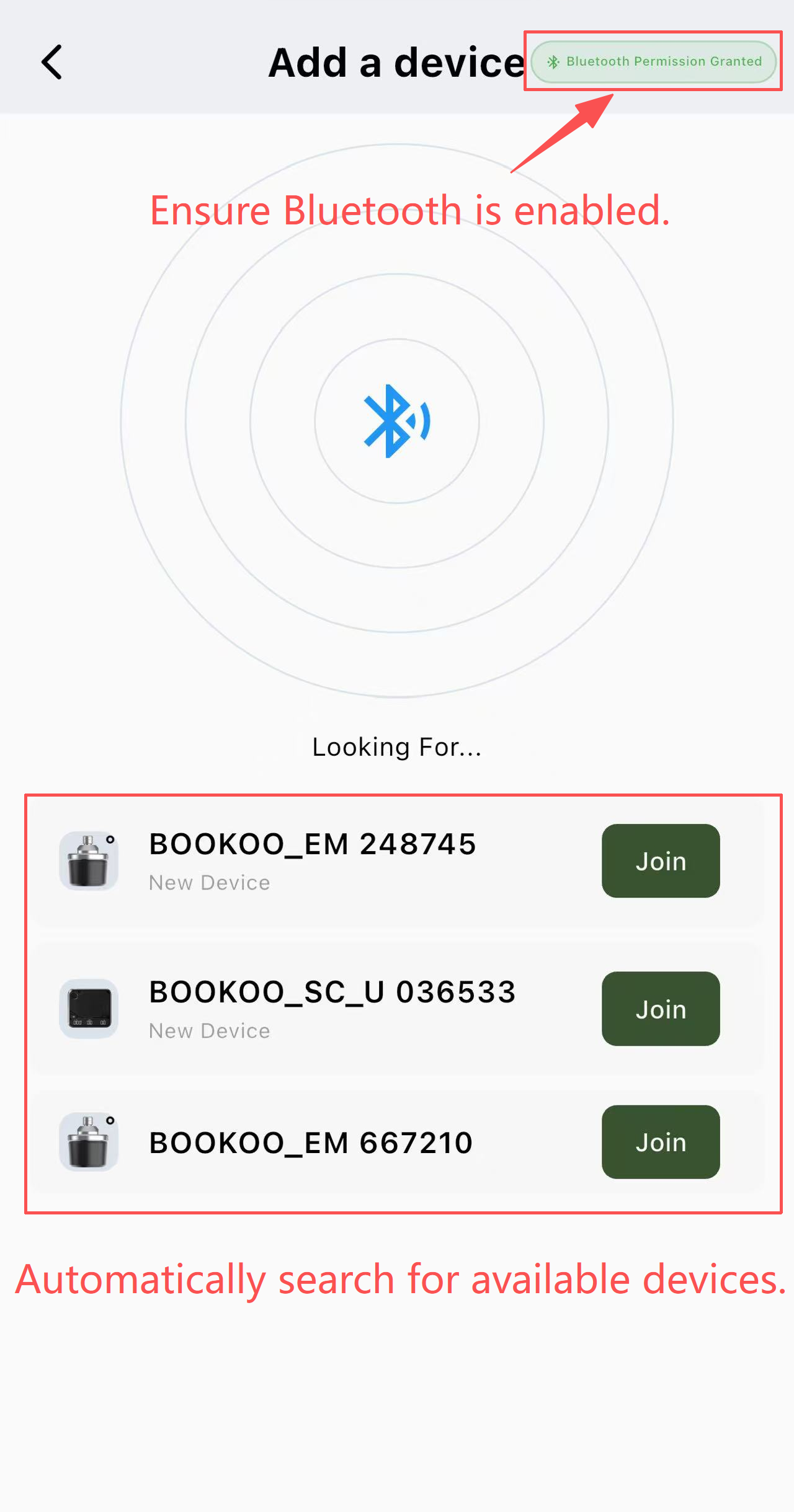
Select your EM from the device list.
Auto-Connect (Optional):
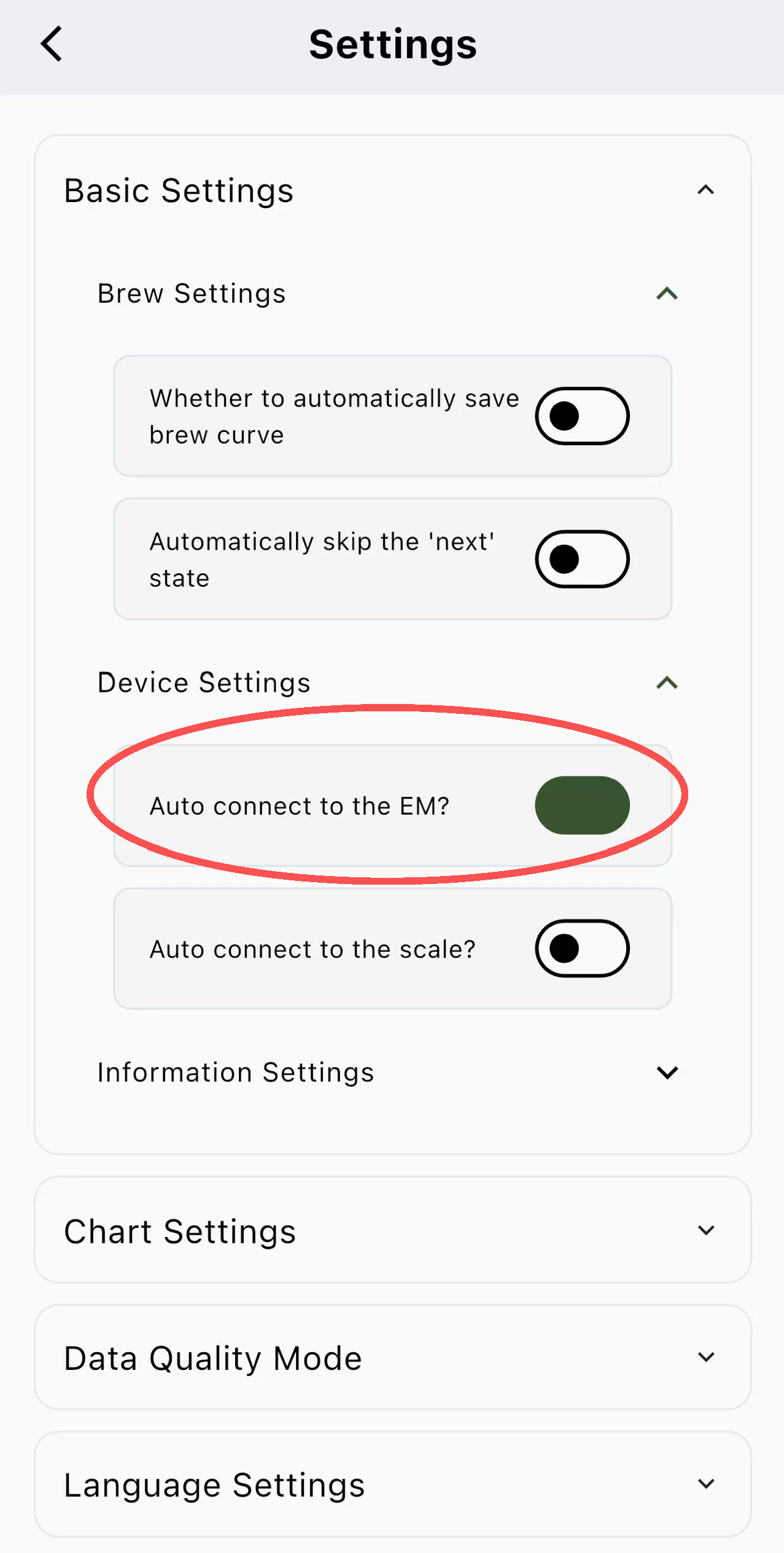
Go to Basic Settings → Device Settings.
Enable [Auto-connect to the EM].
The EM will automatically connect on your next use.
4. Customize Device Settings
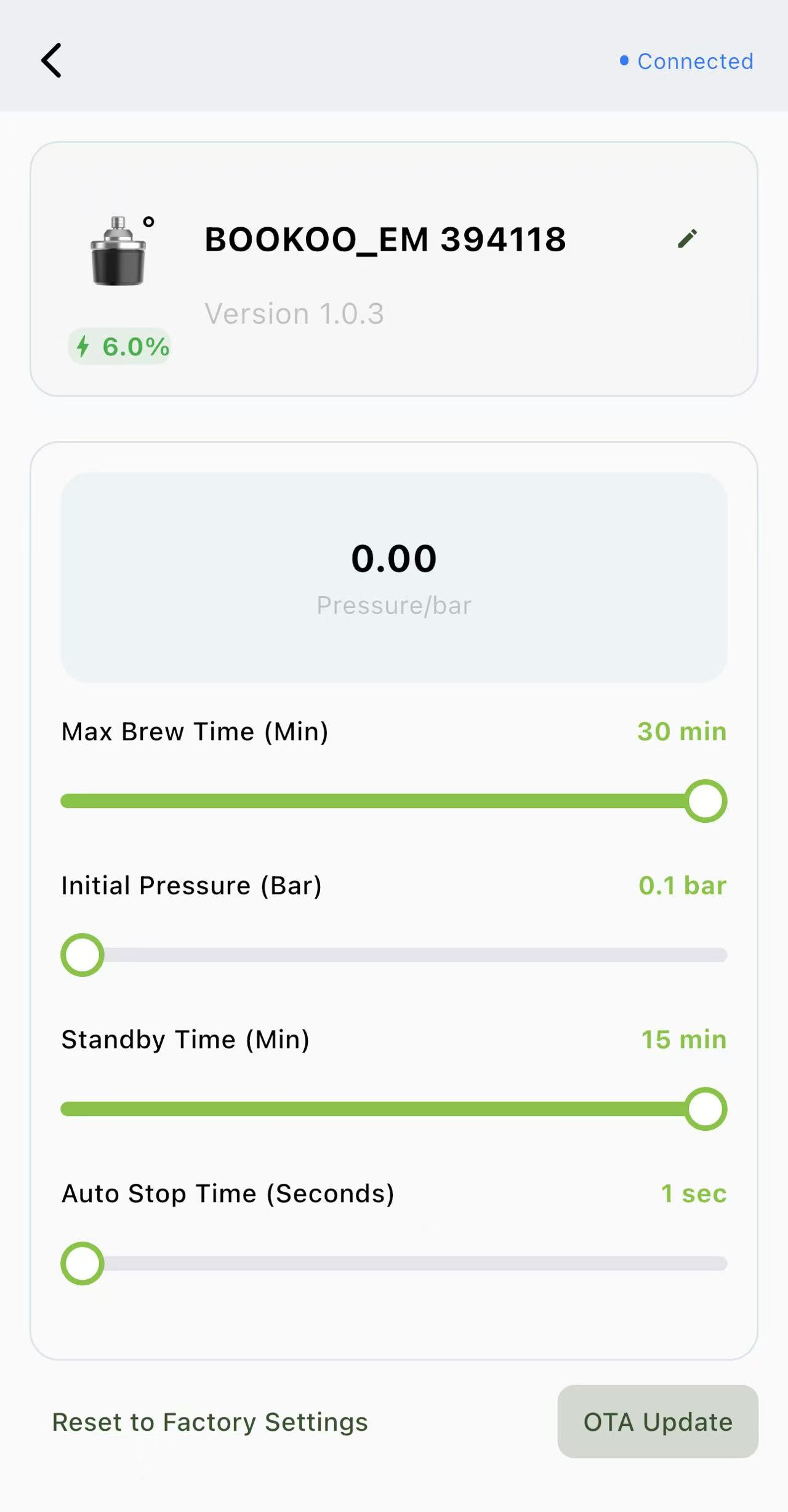
Once paired, the app will navigate to Device Customization. Here you can adjust:
Initial Pressure: The pressure at which monitoring starts automatically.
Standby Time: Maximum waiting time before the initial pressure is reached.
Maximum Brew Time: Longest extraction duration; recording stops automatically to prevent excessively long extractions.
Auto-Stop Time: Duration the pressure must remain at 0 bar before recording stops automatically. Set to 0 for manual stop.
This completes the pairing — you’re ready to monitor your espresso pressure in real time with EM and the BOOKOO N App. ☕
For full installation guidance, see [How Do I Install the EM Pressure Sensor on My Espresso Machine?]