
Keeping your BOOKOO device firmware up to date helps ensure stable connections, accurate data tracking, and smooth compatibility with the BOOKOO N app. Firmware updates are handled wirelessly (OTA) directly inside the app.
Below are two easy ways to check and install firmware updates.
Before You Start
Before updating, please make sure:
Your BOOKOO device has sufficient battery
Bluetooth is enabled on your phone
Your device is properly connected in the BOOKOO N app
Your phone stays close to the device during the update
Method 1: Update from Version Settings
Open the BOOKOO N app
Go to Settings → Version Settings
Tap [Connected Product] Firmware Version
Here you can:
View the current firmware version
Check whether a newer version is available
If an update is available, a red update notification will appear.
Tap the update prompt to start the firmware update.

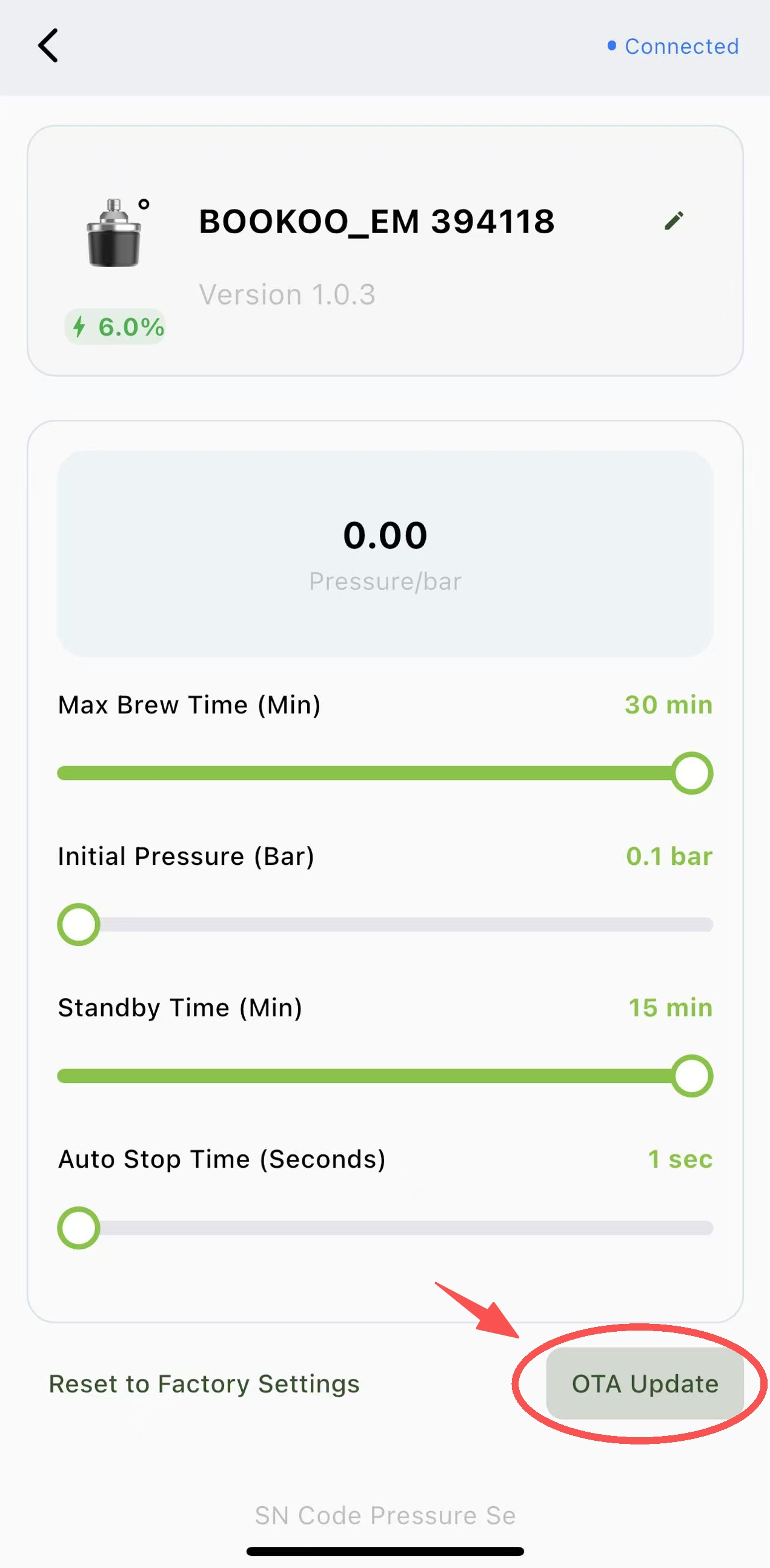
Method 2: Update from the Device Details Page
You can also update directly from the device page:
Open the BOOKOO N app
Tap your connected device on the Home page
Scroll to the bottom of the Device Details page
Tap OTA Update
The app will guide you through installing the latest firmware version.
During the Update
While the firmware is updating:
Keep the app open
Do not turn off the device
Do not disconnect Bluetooth
Avoid switching apps or locking your phone
After the Update
Once the update is complete:
Manually restart the device
Reconnect the device in the app
The firmware version will be updated and can be checked in Version Settings
Your device is now ready to use with the latest improvements.